Last updated: October 3, 2009
How to install your motherboard chipset drivers
Your motherboard contains a CPU, some RAM, and expansion slots. But it also contains some silicon chips which make all of those parts work together. The most important of these chips are called the motherboard chipset. The chipset has a driver which can affect the speed and stability of many of the devices built into your motherboard. It is fairly common for computers to be running with old chipset drivers or to use the basic default drivers built into Windows. If you're having any kind of stability problems with your motherboard then it's a good idea to install the latest chipset drivers. AGP slots are especially susceptible to flakiness caused by old chipset drivers. Even if you don't have an AGP motherboard, it's a good idea to be sure that your chipset drivers are updated to the latest version.
The chipset is usually made up of two chips: the northbridge, and the southbridge. The northbridge is the main chip which connects to the CPU and high-speed expansion slots. The southbridge is a support chip which provides things like USB ports, network connections, and disk drive controllers. Sometimes the northbridge and southbridge are built into one chip in which case it's still called a chipset even though there's only one chip. Most chipset drivers come as a single unified software package which contains the various drivers for both chips. You just install the chipset driver and it automatically takes care of setting up individual drivers for each of the devices in the chips. But a few motherboards use northbridge and southbridge chips from different manufacturers in which case you need to load the drivers for each chip separately.
When someone says that their motherboard uses the ABC chipset, they mean that their northbridge is ABC. The southbridge is rarely mentioned. Even though it's not strictly correct, you'll see the terms "northbridge" and "chipset" used interchangeably in many programs and websites. They just use the name of the northbridge (the main chip) and ignore the southbridge (the support chip). In most cases you find chipset drivers only by searching for a package which matches the name of your northbridge. You don't need to know the name of your southbridge to find it. You can usually just ignore the name of your southbridge when it comes to installing your chipset drivers unless you have one of those rare motherboards which has one brand of northbridge and another brand of southbridge.
To install your chipset drivers, the first thing you have to do is figure out which chipset is used by your motherboard. CPU-Z is a free program which can identify the chipset on almost all PC motherboards. CPU-Z has two versions: a version with an installer, and one in a zip file. Running the one with the installer is a little easier so just download it and execute it to install it. Or if you don't like installers and declining included software then just download the zip file and unzip it. In the exceedingly rare cases where CPU-Z doesn't work you can try Sandra Lite.
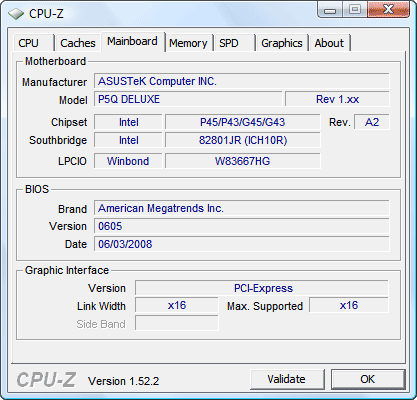
Execute CPU-Z and then select the "Mainboard" tab. CPU-Z uses the term chipset rather than northbridge. In this case the northbridge is listed as Intel P45/P43/G45/G43. That's just a list of variants on a single northbridge. This particular machine actually has the Intel P45 but you don't need to know that. When they give you a list of names it means that they're all variants on the same design and will use the same chipset driver. The southbridge for this computer is an Intel 82801JR which is also known as the ICH10R. Sometimes people shorten the chipset names. For example, a chipset which shows up as Intel i875P may also be referred to as an Intel 875 or Intel 875P. So when you look for the matching name on a website you may have to be shorten the official name a little. The chipset numbers are the important part. To find a match on the website often requires dropping an extraneous letter here and there. Usually the websites give a list of all chipset names so it's pretty obvious which one you have to pick. Common manufacturers of motherboard chipsets include Intel, VIA, NVIDIA, SiS, and AMD.
Once you have the name of your chipset, you have to find the right driver. The best drivers you can get are the "latest and greatest" drivers which can be downloaded from the website of the manufacturer of your chipset. Those drivers are often more recent than the drivers you can download from the maker of your computer or motherboard. The process of installation is usually quite simple. You just download a file, unzip it if it's a .ZIP file, and then run it. For most chipset drivers, you do not need to uninstall your old chipset drivers before installing the new ones. The cases where you need to uninstall first are noted in the table below. Be sure to read any instructions on the download web page or in a readme file in case its steps are different than the ones listed below.
If you're installing a new operating system from scratch then Windows will use default chipset drivers to get your system running. Those default drivers have limited functionality. Generally, the first thing to do once Windows is up and running is to install the chipset drivers. It's best to install chipset drivers before anything else because some of your motherboard devices won't appear until after the chipset drivers are installed. In most cases things will still work if you install chipset drivers later, but generally speaking, it's best if they're installed first.
If you're updating an AGP driver then it may be referred to by many different names. It may be called the AGP driver, AGP miniport, or GART driver.
Keep in mind that most driver updates work perfectly but sometimes things can go wrong. You should only be doing this if you currently have problems. If you want to play it safe, then you should make a system restore point (as explained here) before fiddling with your drivers. Then if something goes wrong, you can roll Windows back to the state it was in before you got into trouble. To install most drivers, you must have administrator rights. This page explains how to make sure you have the appropriate priveleges. It's also a good idea to disable your anti-virus software before changing drivers.
Intel® X58 Express ChipsetOverview
Desktop PC platforms based on the Intel® X58 Express Chipset, combined with the Intel® Core™ i7 processor family, drive breakthrough performance and state-of-the-art technology to performance and mainstream platforms.
The Intel X58 Express Chipset supports 45nm Intel Core i7 processor family at 6.4 GT/s and 4.8 GT/s speeds via the Intel® QuickPath Interconnect (Intel® QPI). Additionally, this chipset delivers dual x16 or quad x8 PCI Express* 2.0 graphics card support, and support for Intel® High Performance Solid State Drives on ICH10 and ICH10R consumer SKUs.
Product information
Features and benefits
| Intel® QuickPath Interconnect (Intel® QPI) at 6.4 and 4.8 GT/s |
Intel’s latest system interconnect design increases bandwidth and lowers latency. Supports the Intel® Core™ i7-965 processor Extreme Edition, Intel® Core™ i7-940 processors and Intel® Core™ i7-920 processors. |
| PCI Express* 2.0 interface |
PCI Express 2.0 delivers up to 16GB/s bandwidth per port, double that of PCIe* 1.0. It provides leading-edge graphics performance and flexibility with support for dual x16 up to quad x8 graphic card configurations or any combinations in between. |
| Intel® High Definition Audio◊1 |
Integrated audio support enables premium digital sound and delivers advanced features such as multiple audio streams and jack re-tasking. |
| Intel® Matrix Storage technology◊2 |
With additional hard drives added, provides quicker access to digital photo, video and data files with RAID 0, 5, and 10, and greater data protection against a hard disk drive failure with RAID 1, 5, and 10. Support for external SATA (eSATA) enables the full SATA interface speed outside the chassis, up to 3 Gb/s. |
| Intel® Rapid Recover technology |
Intel's latest data protection technology provides a recovery point that can be used to quickly recover a system should a hard drive fail or if there is massive data corruption. The clone can also be mounted as a read-only volume to allow a user to recover individual files. |
| Intel® Turbo Memory◊3 |
Intel's innovative NAND cache designed to improve the responsiveness of applications, application load times, and system boot performance. Intel® Turbo Memory, paired with the Intel® X58 Express Chipset, also allows the user to easily control the applications or data in the cache using the new Intel® Turbo Memory Dashboard interface, boosting performance further. |
| Serial ATA (SATA) 3 Gb/s |
High-speed storage interface supports faster transfer rate for improved data access up to six SATA ports. |
| eSATA |
SATA interface designed for use with external SATA devices. It provides a link for 3 Gb/s data speeds to eliminate bottlenecks found with current external storage solutions. |
| SATA port disable |
Enables individual SATA ports to be enabled or disabled as needed. This feature provides added protection of data by preventing malicious removal or insertion of data through SATA ports. Especially targeted for eSATA ports. |
| USB port disable |
Enables individual USB ports to be enabled or disabled as needed. This feature provides added protection of data by preventing malicious removal or insertion of data through USB ports. |



;)
;)